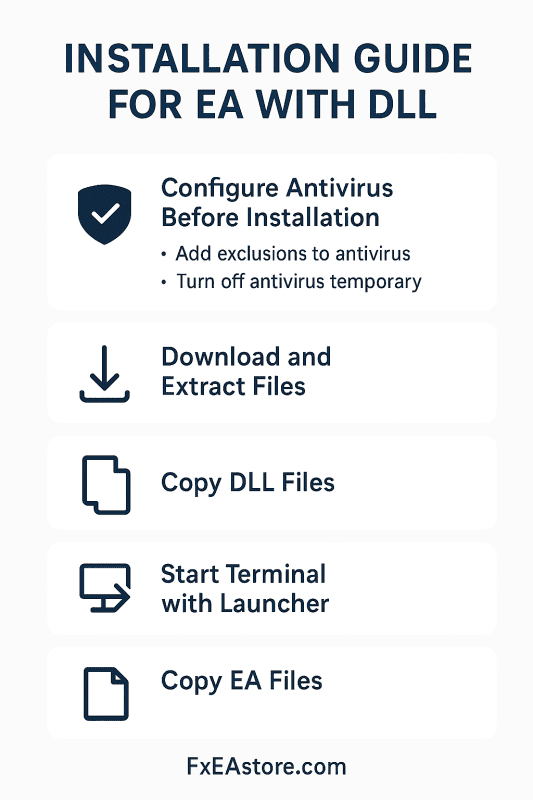
📘 Installation Guide for EA with DLL
Some Expert Advisors (EAs) require a custom DLL file to work. Sometimes antivirus software (including Windows Defender) may block it and show a false virus alert. This happens because the DLL is custom and not verified by Microsoft or other publishers. To make the EA work, you must allow it by setting exclusions and following the steps below.
⚙️ Steps to Install EA with DLL
STEP 1️⃣: Configure Antivirus Before Installation
-
Turn off your antivirus temporarily.
-
Add Exclusions in Windows Security (or your antivirus):
-
The folder where you download the EA/Indicators (usually Downloads).
-
The root folder of MT4/MT5 (where the terminal.exe file is located).
-
👉 In Windows Defender:
Go to Windows Security → Virus & threat protection → Manage settings → Exclusions → Add or remove exclusions.
STEP 2️⃣: Download and Extract Files
-
Download the EA package.
-
Extract the archive (ZIP or RAR).
STEP 3️⃣: Copy DLL Files
-
Copy all DLL files from the downloaded DLL folder.
-
Paste them into the root folder of MT4 or MT5 (same place as terminal.exe).
STEP 4️⃣: Start Terminal with Launcher
-
Run the terminal using the new launcher included in the package.
-
⚠️ The EA works only with the launcher, not the original shortcut.
STEP 5️⃣: Copy EA Files
-
Copy the EA file (.ex5 / .ex4) and other related files (presets, indicators if included).
-
Paste them into the correct folders inside MQL4/MQL5 (e.g., Experts, Indicators, Presets).
✅ Done! Your EA with DLL is now ready to use.