
Fish N Grid EA MT4 – Full Installation & Setup Guide
📌📌 Buy the unlimited Fish n Grid EA MT4 product here 📌📌📌
1. Prepare the EA Files
After downloading the Fish N Grid EA package, locate the extracted folder. Inside, you should find the EA file (.ex4 or .mq4), optional indicators, and configuration presets.
2. Open the MT4 Data Folder
-
Launch MetaTrader 4.
-
Click File → Open Data Folder.
-
This directory contains all the platform’s functional folders, including Expert Advisors and Indicators.
3. Install the EA
-
Open MQL4 → Experts and copy the EA file into this folder.
-
If additional indicators are included, place them inside MQL4 → Indicators.
-
If the EA requires DLL files, move them into MQL4 → Libraries.
-
Close and reopen MT4, or
-
Right-click inside the Navigator panel and select Refresh.
This ensures MT4 loads the newly added components.
5. Attach Fish N Grid EA to a Chart
-
Open a chart for the pair recommended by the EA (commonly XAUUSD or major forex pairs).
-
In the Navigator window, expand Expert Advisors.
-
Drag Fish N Grid EA onto the chart to open its configuration panel.
6. Configure the EA Settings
Common Tab
-
Enable Allow live trading
-
Enable Allow DLL imports (if required)
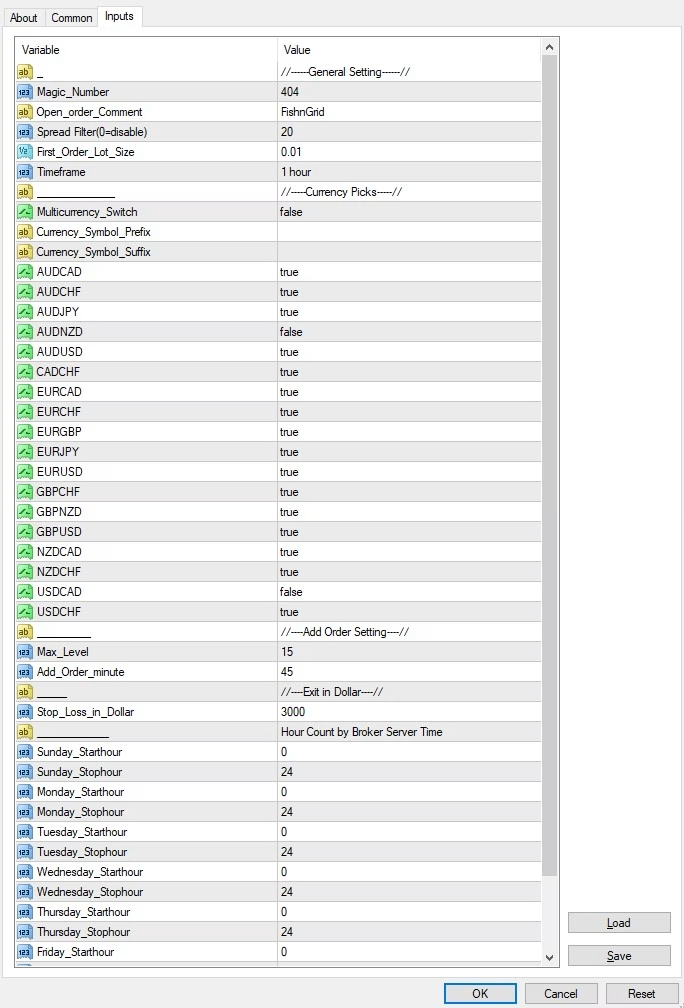
Inputs Tab
-
Adjust risk settings, lot size, grid spacing, and money management options.
-
When using a preset file (
.set), click Load and apply it.
7. Enable Auto Trading
-
Turn on the AutoTrading button at the top of MT4.
-
Look for a smiley face in the chart’s upper-right corner—this confirms the EA is active.
8. Monitor EA Activity
-
Open Terminal → Experts / Journal to ensure the EA is running without errors.
-
The EA will begin creating grid orders automatically based on its programmed strategy.
9. Tips for Best Performance
-
Use a VPS for stable 24/7 trading.
-
Test new settings on a demo account before applying them live.
-
Regularly review lot size and risk parameters to match market conditions.