
How to Install and Set Up XAUScalper Pro EA on MT4

📌📌 Buy the unlimited XAUScalpPro EA MT4 product here 📌📌📌
1. Download and Prepare the Files
-
After purchasing or receiving the EA package, locate the downloaded file on your computer.
-
If it comes in a ZIP or RAR archive, extract it to access the EA file (e.g.,
.ex4or.mq4) and any set files or indicators included.
2. Open the MT4 Data Folder
-
Launch your MetaTrader 4 platform.
-
Go to File → Open Data Folder.
-
This will open the installation directory where all EA and indicator files are stored.
3. Copy EA Files to the Correct Folders
-
Inside the MT4 Data Folder, open MQL4 → Experts.
-
Copy the EA file (e.g.,
XAUScalperPro.ex4) into this folder. -
If the EA package includes custom indicators, place them inside MQL4 → Indicators.
-
If there are
.dllfiles, move them into MQL4 → Libraries.
4. Restart or Refresh MT4
-
Close and reopen MT4 to ensure the new files are recognized.
-
Alternatively, in the Navigator window, right-click Expert Advisors and select Refresh.
5. Attach XAUScalper Pro EA to a Chart
-
Open a XAUUSD chart or the symbol the EA is designed for.
-
In the Navigator panel, find XAUScalper Pro under Expert Advisors.
-
Drag the EA onto the chart to open its settings panel.
6. Configure EA Settings
Common Tab
-
Enable “Allow live trading”.
-
Enable “Allow DLL imports” if the EA requires it.
Inputs Tab
-
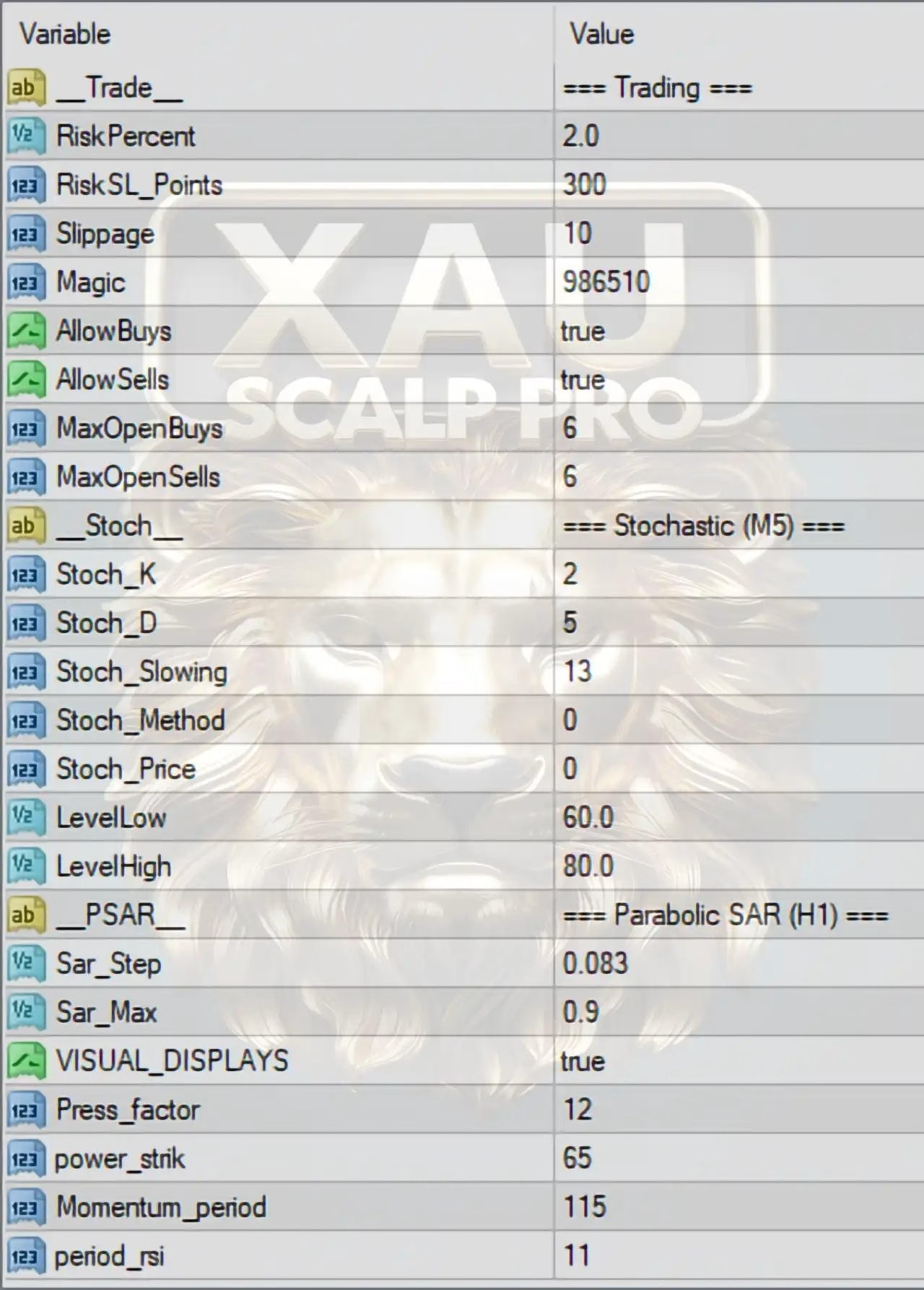
Adjust parameters such as lot size, risk level, magic number, or strategy settings.
-
If you received a
.setfile, click Load and apply it directly.
7. Enable Auto Trading
-
Ensure the AutoTrading button at the top of MT4 is turned ON (green).
-
Once the EA is active, a smiley face icon will appear in the top-right corner of the chart.
8. Check EA Status
-
Open the Terminal window (Ctrl + T).
-
In the Experts and Journal tabs, verify that the EA has loaded without errors.
-
The EA will begin monitoring the market and executing trades according to its strategy.
9. (Optional) Use a VPS
-
For scalping EAs like XAUScalper Pro, running MT4 on a VPS ensures 24/7 uninterrupted operation, reducing risks from internet or power issues.